MINECRAFT CLASSIC-INSPIRED GAME
Wasm Arcade Minecraft: Play ClassiCube Online
Play ClassiCube, a Minecraft Classic-inspired building game, on Wasm Arcade. Explore a single-player world, choose blocks and start building in your browser.
CLASSICUBE BROWSER GAME
Play Minecraft Classic
Click inside to focus · WASD move · Space jump · B blocks · Esc menu
Keyboard and WebGL required.
What is Wasm Arcade Minecraft?
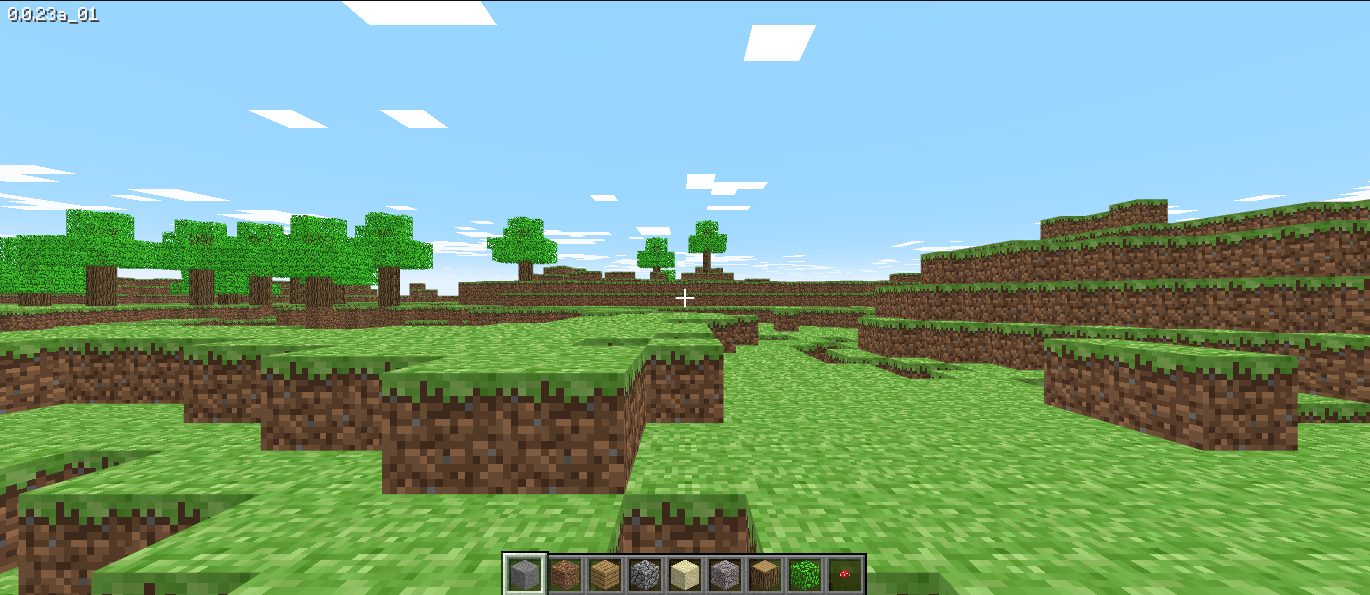
Wasm Arcade Minecraft brings a classic-style building playground to your browser through ClassiCube. This single-player game is inspired by Minecraft Classic’s early creative play: explore the terrain, choose blocks from your hotbar, and shape a world of your own.
The game loads in an embedded ClassiCube web client after you choose Play or the page’s short auto-start begins. The poster appears while the client loads; if loading stalls, use Retry or open ClassiCube in its own tab. Wasm Arcade provides this page and its controls, while the game itself comes from the separate ClassiCube project.
How to play ClassiCube
Select Play Minecraft Classic and wait for the generated world to appear. Click inside the play area to focus it. Walk with WASD, look around with the mouse, and use the block controls to build: left-click breaks a block, right-click places one, and the middle button picks a block. Use the number keys to select a hotbar slot. Start with a small shelter or path so you can learn the controls without losing track of your starting area. If the frame shows an error or remains on its loading screen, choose Retry or open ClassiCube in a separate tab.
ClassiCube controls
Use the keyboard to move and jump, and the mouse to look around and work with blocks.
| Input | Use |
|---|---|
| W, A, S, D | Move through the world |
| Mouse movement | Look around |
| Space | Jump |
| B | Open the block inventory |
| Left mouse button | Break or delete a block |
| Middle mouse button | Pick the targeted block |
| Right mouse button | Place a block |
| 1–9 | Select a hotbar slot |
| Escape | Open the game menu and release the cursor |
Build your first world
Try a few small goals in the generated world. First, walk a short loop and choose a landmark near your starting point. Then make a compact shelter with a doorway, add a short path to it, or build a low wall that outlines a garden. A lookout platform is another simple project: raise a small base, place a stair-like route, and use a different hotbar block to mark the top.
Because this is a creative-style block world, you can revise a design as you go. Break misplaced blocks with the left mouse button, pick a block you see with the middle button, and place it with the right button. Small experiments help you learn the world and input rhythm before you commit to a larger build.
Browser requirements and loading help
The controls described here are designed for a keyboard and mouse. A desktop or laptop with WebGL support is the best fit.
If the poster remains visible, wait briefly and then select Retry. If the player still cannot load, check whether a browser extension or privacy setting blocks the external game host, or open ClassiCube in a separate tab. If keyboard input goes to the page instead of the game, click inside the play area again. If the cursor is not captured, try a desktop browser that supports pointer lock and click inside the game again. Press Escape to leave the game menu or release the cursor.
Frequently asked questions
Is Wasm Arcade Minecraft the original Minecraft?
No. This page embeds ClassiCube, a separate project inspired by Minecraft Classic. It is not an official Minecraft or Mojang product.
Is this build single-player or multiplayer?
The hosted build on this page is single-player. It does not connect you to a multiplayer server.
Do I need a ClassiCube account?
This single-player build starts without a ClassiCube account login.
Which controls should I use?
Use WASD to move, Space to jump, B to open the block inventory, mouse buttons to break, pick, or place blocks, and 1–9 to select a hotbar slot. Click inside the game first so it can receive focus.
Can I play with a touchscreen?
Use a keyboard and mouse for the controls listed here.
Will my world be saved permanently?
The build stores its generated world in this browser’s IndexedDB. That is local browser storage, not a cloud backup; clearing site data or changing devices can make the world unavailable.
What can I try if the game does not load?
Wait for the client to load, choose Retry, and check whether your browser allows the external ClassiCube host. If needed, open ClassiCube in a separate tab.